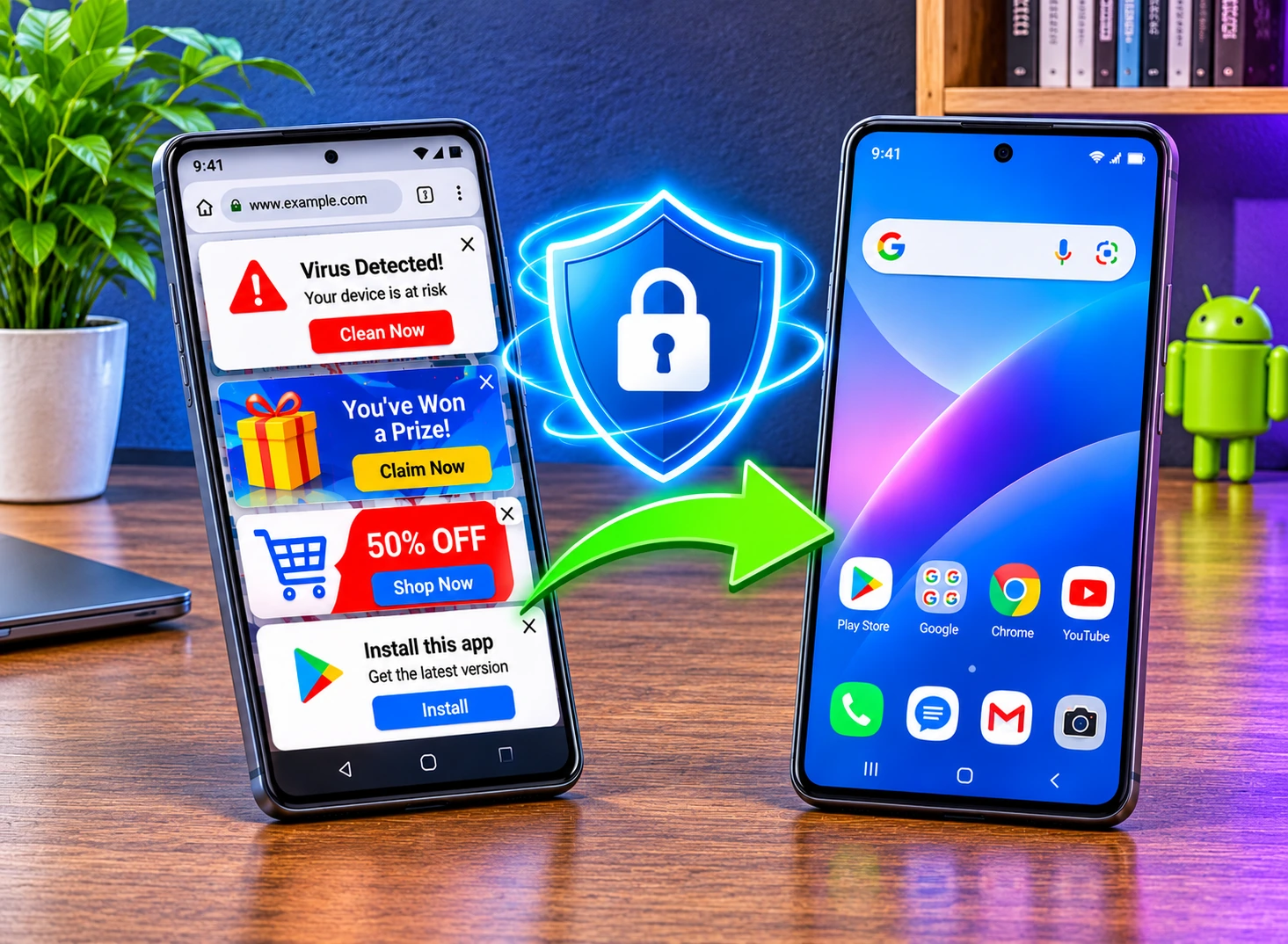

Ads cover your home screen, the battery dies before lunch, and an app you never downloaded sits in your app drawer. You don’t need a repair shop or a paid cleaner to fix this. Most phones bounce back in less than an hour with tools Google already put on them.
This guide walks you through how to remove malware from Android, one step at a time. On Android, a “virus” almost always means a bad app, so once that app goes, the virus goes with it. First you’ll clean the phone, then you’ll shut down the pop-up ads, and last you’ll lock things down so the problem stays gone.
Quick answer
To remove malware from Android, run a Google Play Protect scan, restart in safe mode, and uninstall any app you don’t recognize or that showed up right before the trouble started. If the Uninstall button stays gray, switch off the app’s device admin access first. For pop-up ads, find the app that can draw over your screen and block notifications from websites in your browser.
How Do You Remove Malware From Android Step by Step?
Follow these six steps in order. They also work if you want to clear a virus from your phone, since both problems lead back to one bad app. Stop as soon as the phone behaves normally again.
Step 1: Turn On Airplane Mode
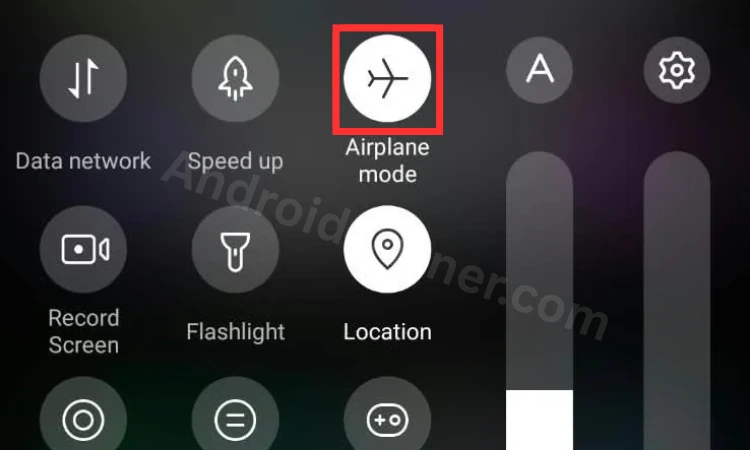
Pull down the quick settings panel and tap Airplane mode. With the connection cut, a harmful app can’t send your data anywhere while you clean up.
The FTC also suggests you stay away from banking and shopping apps until the phone is clean. Switch Wi-Fi back on only when you need the Play Store.
Step 2: Scan Your Phone With Google Play Protect
Every certified Android phone comes with Google Play Protect, a free scanner that offers the fastest way to check for viruses on Android. It looks at each app you install and runs its own checks in the background.
- Open the Google Play Store app and then tap your profile picture in the top right corner.
- Choose Play Protect.
- Tap Scan if you see the button, then follow whatever it tells you.
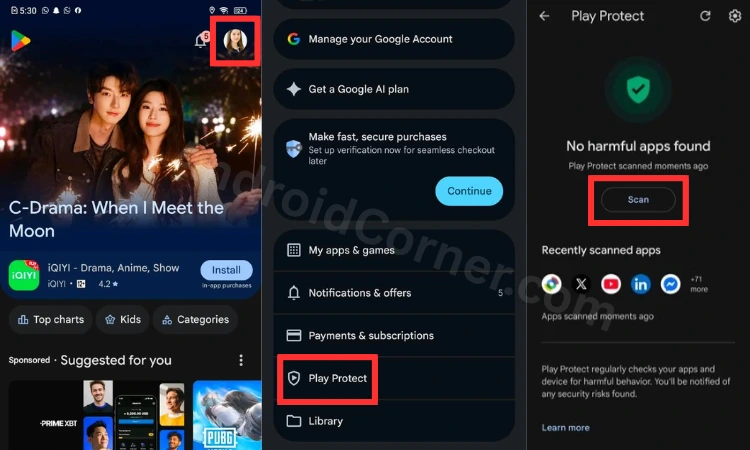
Google says Play Protect can also freeze a harmful app until you remove it, or delete it on its own and send you a notice. While you’re on that screen, tap the gear icon and make sure Scan apps with Play Protect stays on. When you install an app Google hasn’t seen before, Play Protect may ask to check it first. Let it.
Own a Samsung Galaxy? You get a second scanner, too. Open Settings, tap Device care, then Diagnostics, and run App safety Diagnostics. Anything it puts under Apps to review, you can uninstall right there.
Step 3: Restart in Safe Mode
Safe mode boots your phone with only the apps it came with. If the ads or crashes vanish there, one of your downloads causes them.
- Open the power menu. On most phones, hold the power button. On Samsung, press the side key and volume down together, or tap the power icon in quick settings.
- Press and hold Power off until the safe mode prompt pops up.
- Tap Safe mode or OK, then wait for the words Safe mode to appear at the bottom of the screen.
Grab a screenshot of your home screen beforehand, because safe mode sometimes wipes widgets. When you finish, a normal restart takes your Android phone out of safe mode. Button combos change from brand to brand, so check your phone maker’s help page if yours works differently.
Step 4: Find and Uninstall the Harmful App
Head to Settings, tap Apps, then See all apps. Scan the list for anything unfamiliar or anything you added just before the trouble began. Flashlight tools, wallpaper apps and free VPNs from unknown developers top the list of usual suspects. Tap the app, choose Uninstall, and confirm. For most people, that one tap is how you delete a virus on Android.
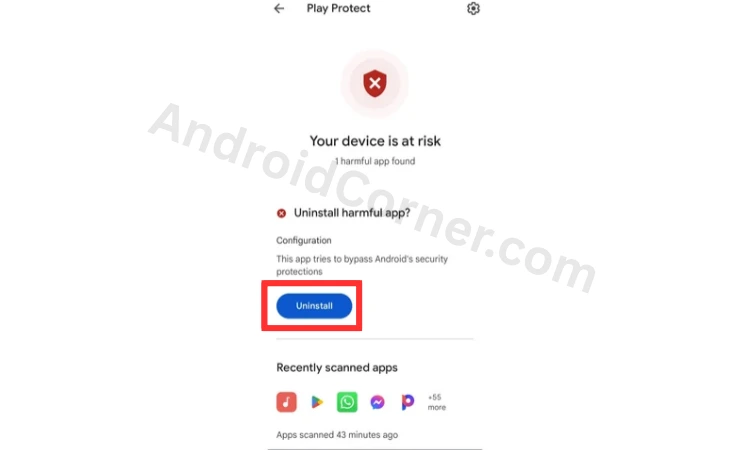
Google recommends removing recent apps one by one and restarting after each. That way you’ll know exactly which app caused the mess, and you can bring back the innocent ones later.
Keep an eye out for apps called System Update, Android System or Device Security with a plain gear or shield icon. Genuine system parts rarely offer an Uninstall button, so a removable app with an official sounding name deserves suspicion.
Step 5: Remove Device Admin and Accessibility Access
A gray Uninstall button usually means the app handed itself device admin rights, a favorite trick for dodging removal. Take those rights back and the app comes off easily.
- Open Settings and tap Security and privacy.
- Tap More security settings, then Device admin apps. Samsung tucks this list under Other security settings.
- Turn off the suspicious app and tap Deactivate this device admin app.
- Go back to Apps and uninstall it.
Next, look at accessibility access. Malware loves this permission because it lets an app read your screen and tap buttons for you. Go to Settings, then Accessibility, and open Downloaded apps or Installed apps. Switch off any service you didn’t turn on yourself.
Step 6: Clear Your Downloads and Browser Data
One last sweep wipes out what the phone virus left behind. Open the Files app, go to Downloads, and delete any file ending in .apk that you don’t remember saving, since those installed files can quietly reinstall the culprit later. Then open Chrome, tap Settings, then Privacy and security, and clear your browsing data.
Good to know
Every phone is set up a little differently, so these steps might not match yours exactly. Can’t find a setting? Just search for it in your phone’s Settings.
How Do You Stop Pop-Up Ads on Android?
When ads keep popping up on your phone, one of two things sits behind them. Either an adware app is running, or a website got permission to send you notifications.
How Do You Find the App Showing Pop-Up Ads?
The next time an ad shows up, open your Recent apps screen right away. Often the ad appears as its own card, labeled with the name of the app that launched it.
No luck? Check which apps may float on top of everything else.
- Open Settings and tap Apps.
- Tap Special app access, then Display over other apps. On Samsung, tap the three dot menu inside Apps, then Special access, then Appear on top.
- Turn off any app that has no good reason to cover your screen.
- Uninstall it if the ads stop after you remove that access.
How Do You Block Pop-Ups in Chrome and Samsung Internet?
Plenty of scary alerts in your notification shade come from websites, usually after someone tapped Allow without reading. In Chrome, tap the three dot menu, open Settings, then Notifications, and turn off any site you don’t know. Under Site settings, open Pop-ups and redirects and keep it set to blocked. Samsung Internet offers similar notification and pop-up controls in its own settings.
Never call a number shown in a virus warning, and never install an app one recommends. According to the FTC, scammers use these alerts to take remote control of devices and charge victims for fake repairs.
How Do You Secure Your Accounts After Malware?
Once the phone runs clean, protect your accounts next. That step finishes the job when your phone has a virus, because malware may have grabbed passwords or codes while it ran.
- Change your Google password first, ideally from a computer or a different phone, then update banking and email.
- Turn on 2-Step Verification wherever you can.
- Review your Google Play order history and phone bill for charges you never made.
- Warn friends and family to ignore odd messages sent from your number.
If someone else may have used your phone or password, sign out of every other device from your Google Account security page.
Will a Factory Reset Remove a Virus?
Yes, restoring factory settings removes almost every Android virus, because the reset erases each app you installed and returns the phone to its out of box state. Keep it as a last resort, though, since it also deletes your photos, messages and settings.
Back up your photos and contacts first, but think twice before you restore everything afterward. A full backup taken while the phone carried the infection can bring the same app straight back. Reinstall your apps one at a time from the Play Store instead.
One rare exception exists. A few cheap phones from unknown brands ship with malware baked into the system itself, and a reset can’t touch it. If trouble returns soon after a reset, contact the seller or phone maker instead of resetting again.
How Do You Know if Your Phone Has a Virus?
Does your phone have a virus? One odd glitch proves nothing, but a few of these signs at once should worry you.
- Apps you never installed appear in your list.
- Battery life drops fast, and the phone feels warm while it sits idle.
- Mobile data use spikes, or strange charges land on your bill.
- Your browser jumps to sites you never chose.
- Everything slows down, and storage fills up for no clear reason.
- Friends get texts from you that you never sent.
Some problems only look like malware. Use this table to tell them apart.
| What You See | Likely Cause | Is It Malware? | Where to Start |
|---|---|---|---|
| Browser alert saying your phone will be blocked | Scam web page | No | Close the tab |
| Website alerts in your notification shade | Site notifications you allowed | No | Block them in Chrome |
| Battery drain right after a system update | Normal background work after the update | No | Wait a day and restart |
| Slow phone with nearly full storage | Not enough free space | No | Delete big files and unused apps |
| Full screen ads on the home screen | Adware app | Yes | Find the app drawing over other apps |
What Can a Virus Do to Your Android Phone?
A virus can flood you with ads, steal your logins, rack up charges or spy on what you do. Most Android threats fit one of these five types.
- Adware fills the screen with pop-ups and earns its maker money every time one appears.
- Spyware records your messages, location or keystrokes and sends them to a stranger.
- Banking trojans lay fake login screens over real bank apps to catch your password.
- Premium SMS fraud quietly sends paid texts that show up later on your bill.
- Lock screen ransomware hides your display and demands money to unlock it.
Can Android Phones Get Viruses?
Yes, your phone can pick up a virus, and on Android almost all of them arrive inside apps. The usual entry points include install files from random websites, links in texts, and unofficial app stores.
Strictly speaking, a virus copies itself from one place to another, and true viruses rarely show up on phones. When people talk about a phone virus, they nearly always mean a harmful app.
How Can You Keep Malware Off Your Android Phone?
A handful of habits blocks most infections before they start.
- Download apps only from Google Play or the Galaxy Store.
- Refuse accessibility and device admin requests from apps that have no clear need for them.
- Install system and security updates as soon as they arrive.
- Skip links in unexpected texts, even ones that look like they come from a delivery company or bank.
- Stay out of important accounts on public Wi-Fi.
- Switch on Auto Blocker on Samsung Galaxy phones under Settings, then Security and privacy, to stop installs from unofficial sources.
What Is Android Advanced Protection?
Advanced Protection turns on Google’s strictest phone security with a single switch, and it first arrived with Android 16.
Google’s developer documentation says it blocks apps from outside official stores, stops calls from unknown numbers, flags spam links in messaging apps, and turns off older, less secure network connections.
Google built it for people at higher risk, like journalists, but anyone with a supported phone can use it.
Do You Need an Antivirus App on Android?
For most people, no. A free Android antivirus app rarely adds much on top of Play Protect and the habits above.
Be careful with cleaner, booster and battery saver apps in particular, because plenty of them are adware wearing a disguise. If you’d still like a second opinion, pick a well known scanner from the Play Store.
Final Thoughts
Malware on a phone feels scary, but most of the time it comes down to a single rogue download and ten quiet minutes in Settings. Run Play Protect, try safe mode, take away any admin or overlay access to an app grabbed, and then change your passwords.
Keep the factory reset in your back pocket for the rare case nothing else works. After that, stick with official app stores and keep updates on, and the problem is far less likely to return.