

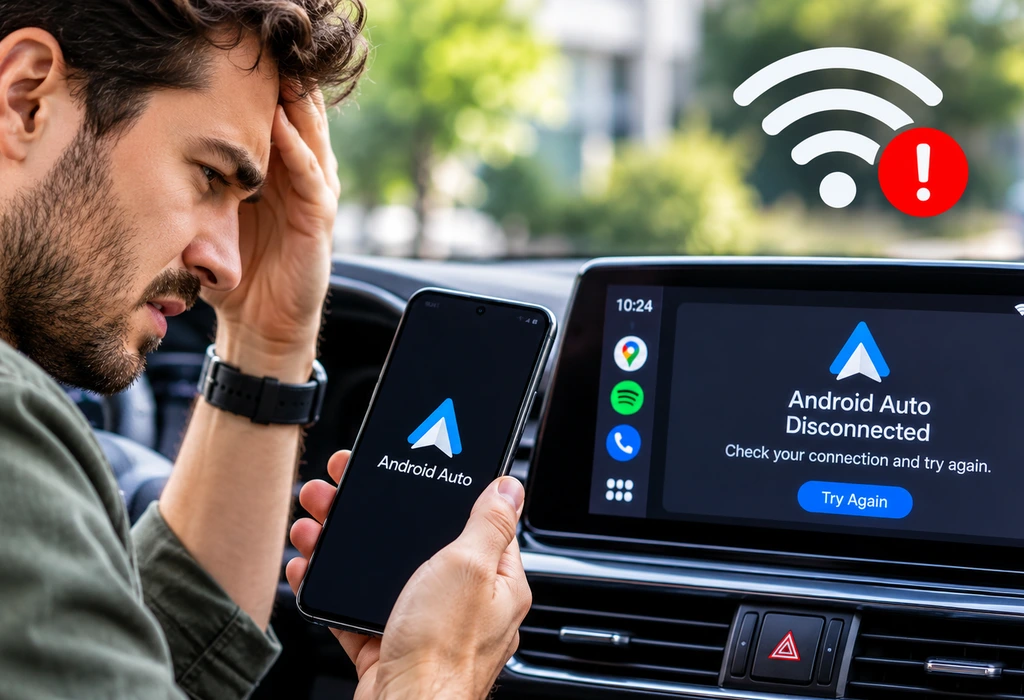
You are halfway through a drive, the map is guiding you, your playlist is humming, and then the screen drops back to the car’s own menu. A few minutes later it happens again. If Android Auto keeps disconnecting on you, it is rarely random, and it is almost never a sign that your phone or car is dying. If the connection never starts at all, the Android Auto not working guide is the better place to begin.
This guide helps you find out why Android Auto disconnects, whether you use a cable or a wireless link. You will learn how to tell a cable problem from a Wi-Fi problem, which phone settings quietly cut the connection, what recent Android Auto updates changed, and the order in which to try each fix so you do not waste an evening.
Quick answer
Android Auto keeps disconnecting most often because of a weak USB cable, a shaky wireless link, aggressive battery limits, or a buggy app update. Start by swapping to a short, quality data cable, then update Android Auto and exempt it from battery optimization. For wireless, turn Wi-Fi and Bluetooth off and on, and forget the car before pairing again.
What Makes Android Auto Disconnect Again and Again?
Most disconnects come from one of five sources, and the way the drop happens usually points to the culprit. A cable or port problem tends to cut the screen instantly, often over a bump. A wireless problem tends to freeze first and then drop. A phone setting problem tends to strike after a few minutes of steady driving. A software bug can hit either mode.
The table below matches what you see to the most likely cause, so you can jump to the right section.
| What You See | Most Likely Cause | Wired or Wireless | Start With |
|---|---|---|---|
| Screen cuts out when the road gets rough | Loose or worn cable or port | Wired | Cable and port |
| Music stutters, then the screen freezes | Weak Wi-Fi link between phone and car | Wireless | Wireless fixes |
| Drops after several minutes of steady driving | Battery limits or phone overheating | Both | Phone settings |
| Began right after an app update | App bug | Both | Updates |
| Happens with every phone you try | Car head unit or port | Both | Hardware check |
Is a Bad USB Cable Causing Your Android Auto Disconnects?
Yes, a bad cable is the most common cause of wired disconnects, and it is also the cheapest thing to fix. Many cables charge fine but carry data poorly, so Android Auto loses the signal the moment the plug shifts slightly.
Cables wear out where they bend, right next to the plug. A cable that works on your desk can still fail in a car, where heat, vibration and a tight angle all pull on the connector. A long cable also adds risk, because data quality drops over distance.
How Do You Pick a Cable That Holds Up?
- Choose a short cable made for data, not one sold only for charging.
- Use the cable that came with your phone first, since it is built for that port.
- Skip bargain gas station cables, which often cannot carry data reliably.
- Plug straight into the car’s USB port, not through a hub or splitter.
Should You Clean the Phone and Car Ports?
Yes, lint is a surprisingly common reason a plug sits loose. Turn the phone off, then gently clear the charging port with a wooden toothpick or a soft brush. Never use metal.
Check the car’s USB port the same way, and try a second car port if your vehicle has one. Some ports are made for charging only, and the data port is often marked with a phone or data icon.
How Do You Fix Wireless Android Auto Disconnects?
Start by restarting both Wi-Fi and Bluetooth on the phone, then pair the car again from scratch. Wireless Android Auto starts with Bluetooth to find the car and then moves the real data over Wi-Fi, so a problem with either one can break the session.
The Wi-Fi link also needs a clear, fast connection. According to 9to5Google’s adapter guide, wireless adapters use 5 GHz Wi-Fi Direct to pass data between the phone and the adapter, which means interference in a crowded area can interrupt the connection. A parking garage, a busy downtown street, or a phone tucked against metal can all make it worse.
What Steps Reset a Wireless Connection Properly?
- Turn Wi-Fi and Bluetooth off on your phone, wait ten seconds, and turn them back on.
- Open Android Auto settings on your phone and look at the list of connected cars.
- Remove your car from that list, then remove the phone from the car’s Bluetooth list too.
- Restart the phone and the car screen.
- Pair the car again as if it were new, and accept every permission prompt.
If you use a third party wireless adapter, unplug it, wait a minute, and plug it back in before pairing. Adapters have their own firmware, so check the maker’s support page for an update as well.
Can Phone Settings Quietly Break the Connection?
Yes, battery and power settings are the second most common reason for random drops. Phone makers add features that shut down background apps to save power, and Android Auto can get caught in that net during a long drive.
Should You Turn Off Battery Optimization for Android Auto?
Yes, it is worth trying. Open your phone’s battery settings, find Android Auto and Google Play services, and set them to unrestricted or not optimized.
The wording changes between phone brands, but the idea is the same. Also turn off any battery saver mode while you drive, since it can limit Wi-Fi and background activity.
Could Heat or Low Storage Be the Hidden Problem?
Sometimes. A phone left in direct sun on a dashboard mount can slow down or shut off features to cool itself. If your phone feels hot, move the mount out of the sun or add airflow from a vent. Low storage can also make apps behave oddly, so clear some space if your phone is nearly full.
Clearing the app cache and resetting Android Auto settings are covered step by step in our fixes for Android Auto that won’t connect, so there is no need to repeat them here.
Could a Recent Android Auto Update Be the Reason?
Yes, an app update can introduce a bug, and it has happened more than once. Google has acknowledged reports of wireless Android Auto disconnecting after updates, and it has rolled out fixes for waves of crashes.
In one case, 9to5Google reported that Google said a newer Android Auto build, version 17.4, should fix random disconnects and freezes. That is why the safest move is always to update Android Auto and Google Play services first, then reboot both screens.
To check your version, open Android Auto settings on your phone and scroll to the bottom, or look up the app in the Play Store. If you are already on the latest build and the drops began right after, wait a week or two for the next update before changing anything drastic.
Is Your Car or Phone Hardware at Fault?
It can be, and the quickest way to tell is to swap one thing at a time. Hardware faults are less common than cable and setting issues, but they do happen, especially in older cars and phones.
| Test | If It Fixes the Problem | What It Means |
|---|---|---|
| Try a different phone in your car | Yes | Your original phone needs attention |
| Try your phone in another car | Yes | Your car needs attention |
| Try a different cable | Yes | The cable was the cause |
| Try a different car USB port | Yes | The first port is weak or charge only |
| Try wired instead of wireless | Yes | The Wi-Fi link is the weak point |
If a different phone drops in your car too, the head unit software may be out of date. Check your carmaker’s support page for an infotainment update, or ask a dealer to look at the USB port. If wired works and wireless does not, your car may simply have a weaker wireless implementation, and sticking with a cable is a perfectly fine answer.
It is also fair to ask whether the extra hassle of wireless is worth it for your drive. Our overview of what Android Auto is and whether you need it can help you decide how much effort the feature deserves.
What Is the Best Order for an Android Auto Disconnect Fix?
Work from the cheapest and most likely fix to the most drastic one. This order saves the most time for most drivers.
- Reboot the phone and the car’s display.
- Swap the cable and try another USB port.
- Clean the phone and car ports.
- Update Android Auto, Google Play services and your phone’s system software.
- Turn off battery optimization for Android Auto and Google Play services.
- For wireless, forget the car on both sides and pair again.
- Test with another phone or another car to find the faulty piece.
- Contact your carmaker or phone maker if the problem stays.
Change only one thing at a time, then drive for at least fifteen minutes. If you change three things together, you will never know which one worked.
When Should You Stop Troubleshooting and Ask for Help?
Stop once you have tried a new cable, a second phone and a full update, and the drops continue. At that point the fault likely sits inside the car or the phone, and a support request will be faster than another weekend of guessing.
Bring notes when you contact support. Write down your phone model, your Android version, the Android Auto version, whether you use a cable or wireless, and how long it takes before it drops. If you only want the feature gone while you sort things out, our guide on how to turn off Android Auto shows how to stop it from launching.
FAQ’s
Does Android Auto Disconnect More on Pixel 10 Phones?
Some Pixel 10 owners reported drops after launch, and Google released fixes through Android Auto and phone updates.
Why Does Android Auto Disconnect When I Get a Phone Call?
A call can briefly hand the audio to Bluetooth, which sometimes makes a weak wireless link drop. If it happens on every call, try a cable for a few days to see whether the drops stop.
Can Android Auto Reconnect on Its Own After a Drop?
Often, yes. Wireless setups usually reconnect within a few seconds once the link recovers. If it never comes back without unplugging or restarting, treat it as a cable, setting or update problem using the steps above.
Is It Normal for the Connection to Drop When the Car Turns Off?
Yes, that is expected, since the car cuts power to the head unit and ports. It only counts as a problem if it drops while the engine is running or the car is on.
Should I Uninstall and Reinstall Android Auto?
Usually no. On newer phones Android Auto is part of the system, so you update it rather than remove it. Clear the app cache and update the app first, and only reinstall if your phone lets you.
Sources
- 9to5Google on Google says this Android Auto update should fix random disconnects and freezes
- 9to5Google on Android Auto addresses 5GHz Wi-Fi notification
- 9to5Google on Wireless Android Auto adapter FAQs
- 9to5Google on Android Auto updates appear to break wireless connection for some drivers
- Android Central on Android Auto latest updates causing connection problems