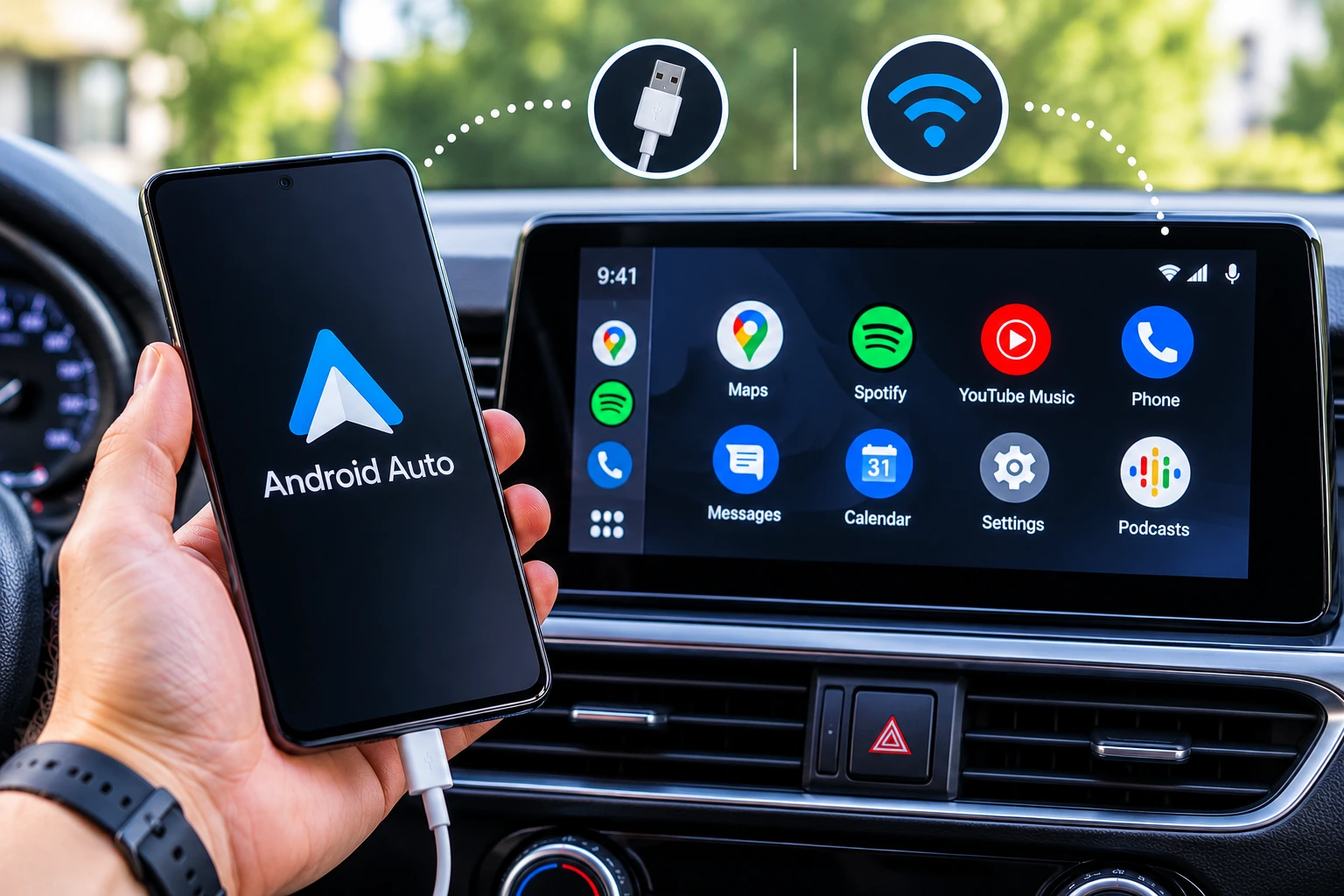

You plug your phone into the car, expect a clean driving dashboard, and get a string of prompts you did not see coming. Permission screens, app updates, and sometimes a Bluetooth pairing request all show up at once. Getting through that first connection the right way is what keeps the next hundred drives smooth.
This guide walks through both ways to connect, with a cable and without one, so you can pick what fits your car. If you are still deciding whether the effort pays off, read our guide to what Android Auto is and who needs it first.
Quick answer
To set up Android Auto, make sure your phone runs Android 9 or newer with an active data plan, and that your car or stereo supports it. For wired setup, plug a good USB cable into the car’s USB port and follow the prompts on your phone. For wireless Android Auto, pair over Bluetooth first, then let the phone and car create a direct Wi-Fi link. Wireless also needs a compatible car and a phone with 5 GHz Wi-Fi.
What Do You Need Before Starting Android Auto?
You need a phone running Android 9 or newer with an active data plan, a compatible car or aftermarket stereo, and a good USB cable for the first connection. Those are the requirements Google lists on its Android Auto Help page.
On most current phones, Android Auto is already built in, so there is nothing to download. If your phone runs an older release such as Android 9, open Google Play and install or update the Android Auto app before you start. Your phone may also ask you to update the app during setup, and saying yes saves trouble later.
Run through this short checklist before you head to the car.
- A phone on Android 9 or newer, unlocked, with enough battery to stay on for a few minutes.
- A car or stereo that lists Android Auto support, which you can confirm in the owner’s manual or on the carmaker’s website.
- A USB cable that carries data, not only power.
- A parked car with the infotainment system switched on.
- Bluetooth and Wi-Fi turned on, if you plan to go wireless.
Never set this up while driving. Give yourself some quiet time, because the first run asks you to read and approve several screens.
How Do You Connect Android Auto With a USB Cable?
Wired setup is the simplest route, and you only go through the full set of prompts once. It is also the best fallback when wireless acts up.
- Park the car and turn on the infotainment system.
- Unlock your phone and keep the screen awake.
- Plug one end of the USB cable into your phone and the other end into the car’s USB port. Some cars have more than one port, and only one may support phone connections, so try the one marked with a phone or Android Auto symbol first.
- Read the prompts on your phone and approve the permissions. Android Auto asks for access to things like calls, messages, and notifications so it can read and reply by voice.
- If the car screen asks whether to start Android Auto, accept it.
- Allow your phone to connect automatically next time when it asks.
- Open Google Maps or Waze and play a song to confirm sound and navigation both work.
That is also how to enable Android Auto on a car that has never seen your phone before. After the first run, most cars start it on their own whenever you plug in.
Which Cable Should You Use?
Use a short, data capable cable from a brand you trust, ideally the one that shipped with your phone. Cables that only charge will power the phone but never start Android Auto.
Adapters and long extension cables are common causes of random drops, so skip them where you can, and replace any cable that has frayed ends or a loose plug.
How Do You Connect Android Auto Wirelessly?
Android Auto wireless setup begins like wired setup and then swaps the cable for Bluetooth and Wi-Fi. Your phone and car first pair over Bluetooth, and after that handshake they create a direct Wi-Fi link that carries the screen and sound. Your phone does not need to join a home or public Wi-Fi network for this to work.
- Check that your car says it supports wireless Android Auto. Many cars with Android Auto only work with a cable.
- Turn on Bluetooth and Wi-Fi from the quick settings on your phone.
- On the car screen, open the phone or device settings and start pairing a new device.
- Pick your car’s name on the phone and confirm that the code matches on both screens.
- Approve the Android Auto prompts on the phone and on the car display.
- If the car asks for a one time USB connection to finish setup, plug in the cable, complete the steps, then unplug it.
- Turn the car off and on again. The phone should now reconnect without a cable.
What Does the Phone Need to Support?
Android Auto wireless usually needs Android 11 or newer and a phone that supports 5 GHz Wi-Fi. Many recent phones meet both, but your phone’s spec sheet is the safest place to check.
The car must support wireless Android Auto as well, and that part depends on the carmaker or stereo brand, so confirm it before you spend any time troubleshooting.
Wired or Wireless, Which Setup Fits You Better?
Wired is usually the steadier choice and keeps your phone charged, while wireless wins on convenience for short trips. Here is how the two compare.
| Feature | Wired | Wireless |
|---|---|---|
| Needs a USB cable every drive | Yes | No |
| Charges the phone while connected | Yes | No, unless you charge it separately |
| Needs 5 GHz Wi-Fi support on the phone | No | Yes |
| Works in every car that supports Android Auto | Yes | No |
| Needs Bluetooth pairing | No | Yes |
Because wireless keeps two radios busy at once, keep the phone on a charger or a wireless charging pad during long drives. If you commute a few minutes at a time, wireless is hard to beat.
Can You Add Wireless Android Auto to an Older Car?
Yes, in many cases, with a plug in wireless adapter, though results vary by car and adapter. These small devices connect to the car’s USB port, where your car already runs wired Android Auto, and then link to your phone over Bluetooth and Wi-Fi.
Adapters are made by third parties, not by Google, so check the seller’s compatibility list for your exact car and phone before you buy. Read recent customer feedback too, since firmware updates can change how well a model behaves. Some aftermarket stereos also include wireless Android Auto built in, which avoids the adapter entirely.
What Should You Change After the First Connection?
Open the Android Auto settings on your phone and adjust these options once, so every later drive starts without fuss. On most phones you can find them by searching for Android Auto in Settings.
- Turn on Start Android Auto automatically, so you do not have to tap anything when you get in.
- Customize the app launcher to hide apps you never use and reorder the rest.
- Check your connected cars list and remove any old car you no longer use.
- Review the voice assistant settings, so spoken commands for calls and directions work the way you expect.
Keep expectations realistic about what appears on the screen. Android Auto only supports certain app types, such as media, messaging, and navigation, so a video app will not just show up. Our page on watching YouTube with Android Auto explains what is and is not allowed. If you ever want to stop the connection, here is how to turn off Android Auto on purpose.
What Should You Do If Setup Does Not Work the First Time?
Start with the cable, then update the software, then restart both devices. Most failed first connections come down to one of these.
- Try a different cable and a different USB port in the car.
- Update the Android Auto app and your phone’s system software.
- Restart your phone and the car’s infotainment system.
If none of that helps, work through our step by step fixes for Android Auto not working, which also lists common error codes.
FAQ’s
Does Android Auto Use Mobile Data?
Yes. Google lists an active data plan as a requirement, because navigation, streaming music and voice commands all run on your phone’s mobile data. Downloading maps and playlists before a trip cuts how much it uses.
Can Two Phones Share One Car?
Yes, most cars can remember more than one phone, but only one can run Android Auto at a time. The phone that connects first usually takes over, and you can remove old phones from the car’s device list.
Does Android Auto Work With a USB-C Port in the Car?
Yes. Use a data cable that matches both ends, such as USB-C to USB-C or USB-C to USB-A, depending on the port in your car. The type of connector matters less than the cable carrying data.
Can You Use Android Auto With an iPhone?
No. Android Auto only works with Android phones, and iPhones use Apple CarPlay instead. Most cars that support Android Auto support CarPlay too.
Empty accordion items break the FAQ schema. The old questions about the built-in app, phone support and safety also repeat the body.
Sources
- Android Auto Help, Get started with Android Auto
- Android Developers, Android Auto and Android Automotive OS apps