

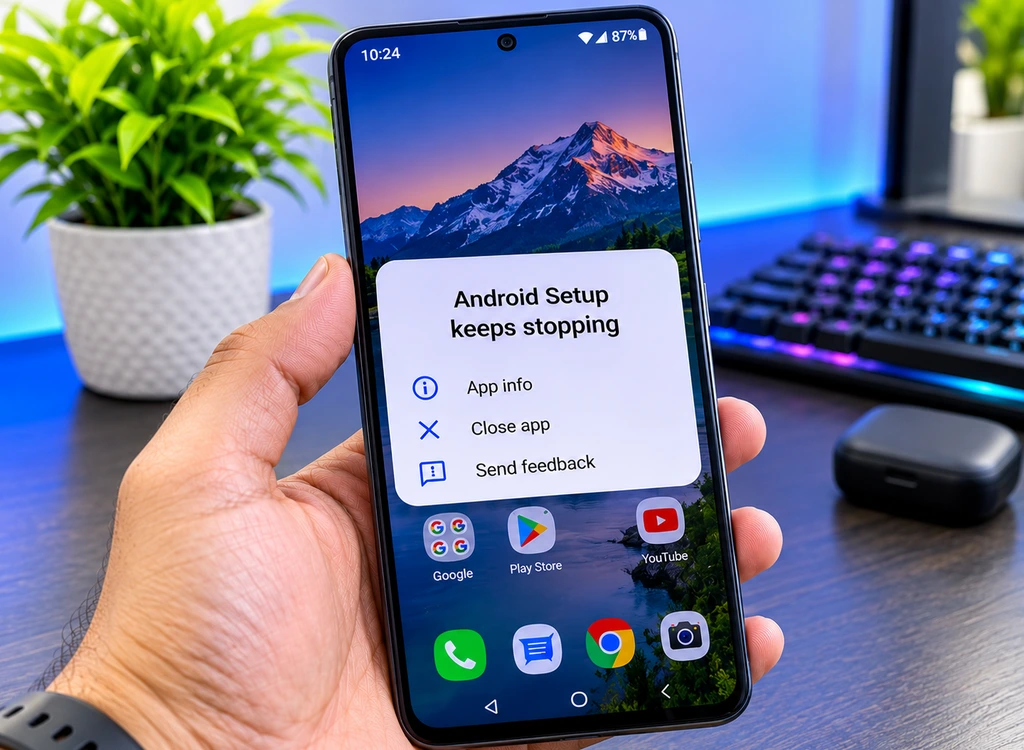
Android Setup keeps stopping when the setup app crashes, and it can be resolved by waiting for the updates to finish or by setting up the phone offline. Most people see it at the same moment. You have reset the phone, set a language and connected to WiFi. Then, the box appears, and hitting Close app simply brings it back.
That timing is a hint. After the phone is connected to the internet, it starts to download updates for the system apps, while the setup screens are still visible. The two clash with each other and setup crashes. That is the reason why it helps to simply wait it out or go offline.
This guide includes 13 fixes, divided by whether you can open Settings or not. If you have seen the error on a phone you already use, it is easier to fix, and those fixes are listed later in the guide.
What Does Android Setup Keep Stopping Mean?
“Keeps stopping” is the message Android shows when an app crashes more than once in a short time. The older versions of Android stated it differently, as “Unfortunately, the Setup Wizard has stopped.” In either case, the app named in the box is the one that has the problem.
Here, it is Android Setup (some phones call it Setup Wizard). It is used for the first screens on a new or reset phone. Your language, network, Google account and any data you copy from an old phone all pass through it. As you cannot use the phone until it is done, crashing here is worse than crashing in a regular app.
You will usually run into the error in one of two ways.
- Stuck during setup. This most often happens after a factory reset. The home screen is not available and Settings is not an option.
- A pop up on a phone that functions well in all other ways. This one may appear after updating the system, and it’s easier to resolve.
Why Does Android Setup Keep Stopping?
There is rarely just one cause. It’s usually a matter of the phone trying to do too much at once as it sets up. These are the common causes.
- As soon as your phone connects to the internet, it will begin to update the system apps. When you sign in or proceed to the next screen midway through that process, setup may crash.
- Restoring a backup too early is even more work. A frequent sticking point is copying applications and data from your previous phone while updates are still underway.
- In some cases, old files remain after a factory reset. Setup attempts to use the data that it had stored from the previous system, but it fails.
- If the date or time is incorrect, the phone cannot communicate properly with Google’s servers and the sign in step fails.
- Older versions of Google Play Services or Android System WebView may not work well with a newer version of the setup app.
- Google says that if you’re down to under 10% storage space on your phone, it’ll start to experience issues. Low battery can also cause trouble as the system closes apps to conserve battery life.
- The SIM card can also be a problem. While the phone activates your mobile network, setup has one more task to handle.
- If you’re running a custom ROM, the Google apps package may not match your Android version. That mismatch is one of the most common causes of setup failure after flashing new software.
| Cause | Happens During Setup | Happens After Setup |
|---|---|---|
| System app updates | Yes | Yes |
| Backup restore | Yes | No |
| Leftover files after reset | Yes | No |
| Wrong date or time | Yes | Yes |
| Outdated Google apps | Yes | Yes |
| Low storage or battery | Yes | Yes |
| SIM activation | Yes | No |
| Mismatched Google apps on a custom ROM | Yes | No |
Which Fix Should You Try?
Start by asking one question. Can you open Settings?
If you can’t, you’re stuck in setup, so only the setup screens and your phone’s buttons are available to you. Begin with the fixes that will not remove anything and use a factory reset as your last option.
If you can, the phone is already configured and the error is only a pop up message. You have a wider range of options available and in most instances, you do not need to reset the phone.
This table lists where each fix works and whether your data is lost or not.
| Fix | Works During Setup | Works After Setup | Erases Data |
|---|---|---|---|
| Tap Close app and continue | Yes | No | No |
| Force stop from App info | Yes | Yes | No |
| Wait for updates to finish | Yes | No | No |
| Skip WiFi and set up offline | Yes | No | No |
| Remove the SIM card | Yes | No | No |
| Skip the backup restore | Yes | No | No |
| Clear cache and storage | No | Yes | No |
| Update Google apps | No | Yes | No |
| Set date and time to automatic | Yes | Yes | No |
| Free up storage | No | Yes | No |
| Restart in safe mode | No | Yes | No |
| Wipe cache partition | Yes | Yes | No |
| Factory reset | Yes | Yes | Yes |
Fixes When You’re Stuck on the Setup Screen
You can’t access Settings at this point, so each of the fixes will only use the setup screens or the buttons of your phone. Use them in the following order.
1. Tap Close App and Keep Going
Tap Close app and then Next or Start immediately. The setup app will typically resume in the background, and you may see one screen further each time. Do this 3 to 4 times, then move to the next fix.
2. Force Stop Android Setup From the Error Box
Some phones show App info within the error box. If that is the case, you can restart the setup app properly.
- Tap App info.
- Tap Force stop, and then tap OK.
- Press back and repeat the setup procedure.
3. Wait for the Updates to Finish
Remember those background updates from the introduction? Sometimes the easiest solution is to just let them run. Plug in the charger, stay on a good WiFi connection, and leave the phone alone for about 15 minutes while it is setting up. Generally setup does not crash after the downloads are complete.
4. Skip WiFi and Set Up Offline
If waiting isn’t working, then do the opposite. Without the internet, the phone can’t start those updates.
- On the WiFi screen, tap Skip or Set up offline.
- Fill out the rest of the screens.
- On the home screen, open Settings and join your WiFi network.
5. Remove the SIM Card
Power off the phone, remove the SIM card, and then power the phone on. This way, setup doesn’t have to turn on your mobile network at the same time. Once the home screen is displayed, reinsert the SIM.
6. Skip the Backup Restore
Select Don’t copy or Skip on the screen that asks you to copy apps and data. Once the phone is ready, your synced data comes back when you sign in, and you can reinstall apps from the Play Store.
Before you do this, there’s one thing you should know. If you reset the phone using its buttons, Google’s device protection will prompt for the Google account that you had on the phone before resetting. You can’t skip that screen. Sign in with that account, and skip only the restore.
7. Check the Date and Time
If your setup screens show a date and time option, be sure they are set to the correct time and date, as well as the correct time zone. Even if the connection is good, a wrong clock can block the sign in step.
8. Wipe the Cache Partition
This clears temporary system files and keeps your photos and apps. It is not available on some newer phones, so if that is the case, go to the next fix.
- Turn the phone off.
- Hold down Volume Up and Power until recovery mode appears. The buttons differ by phone, and some phones may only enter recovery mode when connected to a computer through USB.
- Press the volume buttons to highlight Wipe cache partition and press the Power button.
- Select Reboot system now.
9. Factory Reset From Recovery Mode
If all else fails, a reset restores the system to its original condition. It comes last, since it erases all information on the phone.
- Open recovery mode as you did previously.
- Choose the Wipe data/factory reset option and confirm.
- Select Reboot system now.
- Repeat the setup procedure, leaving out WiFi and the backup restore until you get to the home screen.
Fixes When the Error Pops Up After Setup
If your phone is fine and the message appears infrequently, then you’re in a better spot. In most cases you don’t have to delete anything, and you can open Settings to get more tools.
1. Force Stop Android Setup
- Tap Settings and then Apps.
- Tap See all apps. If you don’t see Android Setup in the list, tap the menu at the top and choose Show system apps.
- Tap Android Setup or Setup Wizard.
- Tap Force stop, then tap OK.
Restart the phone and check if the message comes back.
2. Clear the Cache and Storage
- Open the Android Setup screen in Settings.
- Tap Storage & cache.
- Tap Clear cache.
- If the error returns, come back and tap Clear storage as well.
This only resets the setup application. Your photos, messages and other apps stay where they are.
3. Update Google Play Services and Android
Outdated versions of Google’s own system components are also a frequent cause of the setup app crashing.
- Open the Play Store, tap your profile icon and then tap Manage apps & devices.
- Tap Update all.
- Open Settings and search for System update. Install any waiting items.
- In Settings, look for Google Play system update and install it if available.
4. Set Date and Time to Automatic
- Go to Settings and tap System.
- Tap Date & time.
- Turn on the options to set the time and time zone automatically.
Once changed, restart the phone.
5. Free Up Storage
Keep the 10% storage line from earlier in mind. Open Settings and view Storage to see how much space you have left.
Then delete apps you don’t use anymore, delete large videos, or upload photos to cloud storage until you’re once again comfortably above it.
6. Restart in Safe Mode
Safe mode will disable all of the apps you installed for a period of time, telling you if one of them is causing issues with the setup app.
- Hold down the Power button.
- Touch and hold Power off until Safe mode is displayed, then tap it.
- Try using the phone for some time. If the error stops, it is probably due to a downloaded app.
- Uninstall recently installed apps one by one until the error disappears.
- To exit safe mode, restart the phone normally.
The steps to enter safe mode differ on some phones. If you don’t find the feature, check your phone maker’s support page.
Why You Shouldn’t Disable Android Setup
To prevent the message from resurfacing, some guides recommend disabling the Android Setup app. This may seem like an easy solution, but we don’t recommend it.
Android Setup isn’t a regular app you downloaded. It manages your Google account, data restore and the first screens after a reset. When turned off during setup, the phone may miss certain portions of setup and may only be partially set up. Disabling does not cure the problem, and you may still have the same crash next time you reset the phone.
On many phones, the Disable button for this app is grayed out. In that case it’s the system telling you to leave it alone.
The fixes above address the actual cause, and don’t require turning the app off.
Android Setup Keeps Stopping on an Emulator or Custom ROM
This error has a different cause if you are a developer testing applications or if you are a user who installs custom software. The problem is likely to be with the Google apps package, not with the phone.
On an Emulator
There are some emulator images that crash when a Google apps package is manually installed on them. The setup app expects Google’s services to be built in, and additional packages don’t always fit the image.
The easiest way around it is to select a newer version of the system image, or one that already comes with Google Play.
On a Custom ROM
The Google apps package must be compatible with the ROM’s Android version and the processor type of your phone. When either doesn’t match, setup can crash on the first boot.
- Find out which version of Android your ROM is based on.
- Download the Google apps package for that specific version of Android and processor type of your phone.
- Right after flashing the ROM, before the phone is started for the first time, flash the package.
- In case you are switching from another ROM, first clear data to avoid any trouble.
Do not install a second Google apps package over the existing Google apps in the ROM.
When to Get Help
If the error returns after a factory reset, the problem is deeper than a crash. The system software might be corrupted and setup has no way to repair it. You don’t need to give up on the phone at this point. Most phone manufacturers have a process to reinstall software.
- Google provides an Update and Software Repair tool for its Pixel owners. Use a USB cable to connect the phone to a computer, open the tool in the browser and follow the instructions on the screen.
- Owners of Samsung and other brands can get repair service through the brand’s help website or application, or at an authorized service center.
- If your phone is still under warranty, get in touch with the manufacturer’s support team. A software repair is often covered.
Avoid untrusted flashing software or firmware from unknown sites. The incorrect file may prevent your phone from booting up completely, and it can also void your warranty.
Make sure you have your Google account information before handing over the phone. Device protection will ask for it after a repair or reset.
How to Avoid This Next Time You Reset Your Phone
A freshly reset phone has a lot on its plate, from updates to restoring apps and switching on your SIM. Take care of some of it ahead of time and setup has much less to deal with.
- Charge the phone above half full before beginning and keep the charger near.
- Install any waiting system updates while the phone is still working. A phone on newer software will have fewer updates to download during setup.
- Make sure to back up your data first. Google’s official support documentation states that a factory reset will delete all data on the phone.
- Do not put the SIM card in until you get to the home screen.
- When setting up, skip the backup restore and let your synced data come back after you sign in.
- Record the email address and password of your Google account. You’ll need them after any reset.
- When possible, reset through the Settings app, and use recovery mode only when Settings won’t open.
Final Thoughts
The phone is running several other tasks, and the system app is crashing, causing Android Setup to keep stopping. That’s why the solutions that work best are those that take some of the weight off the phone. You can wait for the updates to complete, go offline, remove the SIM or skip the backup restore.
When it comes to a frequently used phone, the error message is typically resolved by a force stop and a cache clear. The factory reset is the only fix here that removes data, so it is best to save that for last.
FAQ’s
Is Android Setup a virus?
No. It’s a built-in system application that comes on every Android phone. If apps that you didn’t install and unusual pop ups are also showing up, follow our instructions on how to remove malware from Android.
Can I make an emergency call while I'm stuck in setup?
Yes. Most setup screens will have an Emergency call button, typically at the bottom of the screen, and it will work even if setup continues to crash.
Does this error also occur on Samsung phones?
Yes. It may occur on any brand of Android. Names and buttons may be slightly different, depending on the manufacturer, such as Samsung, but the same fixes are applicable.
Will I lose my data if I skip the restore of the backup?
No. Skipping it won’t remove your backup, which stays in your Google account. Contacts, photos and other synced data are returned when you sign in. Some phones only allow a full app restore during setup, so if you need one, run setup again after the error clears.