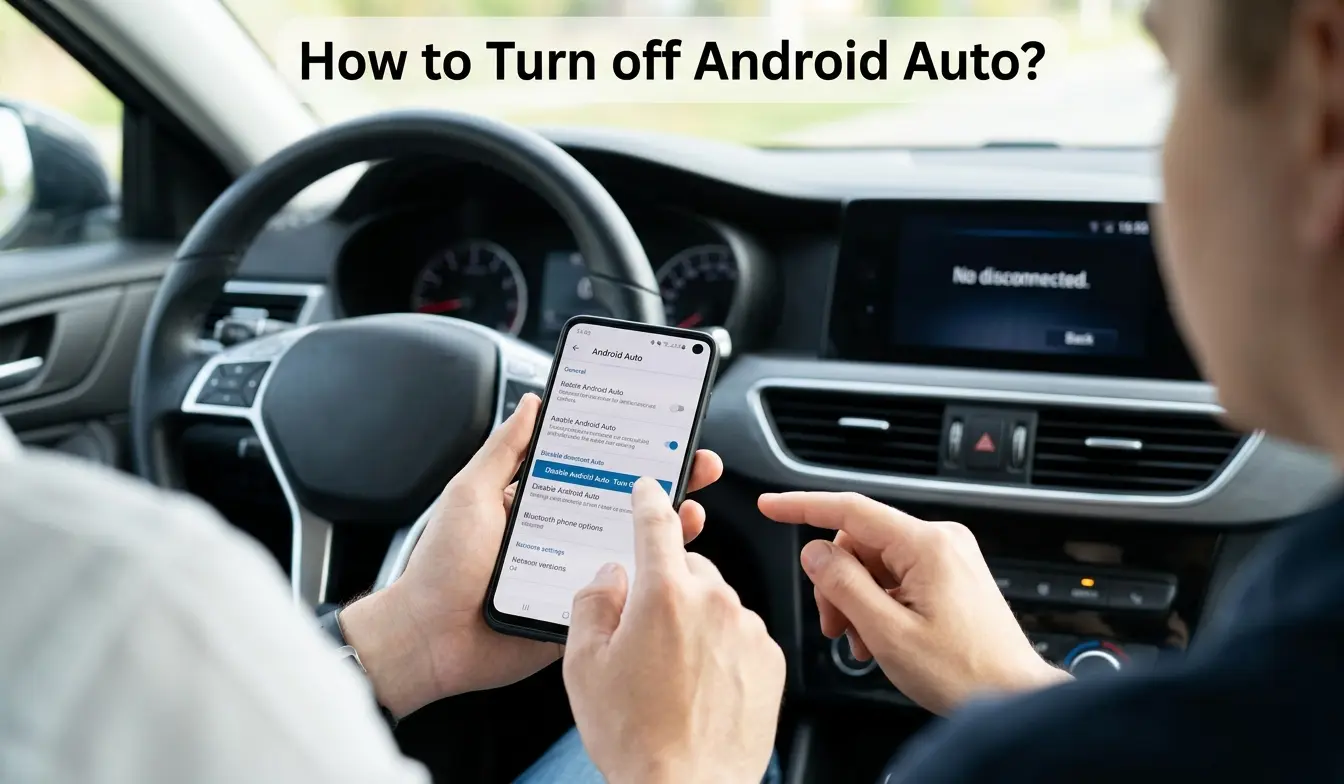
Android Auto is a helpful feature that connects your phone to your car’s display, but it’s not always convenient for every driver. Some users want to disable it to save battery, reduce distractions, protect privacy, or stop it from launching automatically.
If you’re wondering how to turn off Android Auto, the process is simple and can be done through your phone settings or app controls.
In this step-by-step guide, we’ll explain safe, tested methods to disable Android Auto temporarily or permanently, based on real user experience and current Android system settings.
Turn Off Android Auto
If you need a fast solution, open your phone’s Settings, search for Android Auto, and adjust the launch options. In most cases, setting “Start Android Auto automatically” to Never will stop it from opening on its own. You can also disable the app entirely from the Apps section if you rarely use it.
This approach works because Android Auto relies on system permissions and connection triggers. By changing those triggers, you prevent the service from starting in the background. Still, keep in mind that disabling it may remove hands-free navigation or voice controls, which many drivers rely on for safer driving.
How to Turn Off Android Auto on Android Phone
Most people begin on their phone because that’s where the main controls live. Fortunately, the steps are straightforward once you know where to look.
Follow these steps:
- Open Settings on your phone.
- Tap Apps or Connected devices.
- Find and select Android Auto.
- Choose Launch settings or Start automatically.
- Select Never or Only while driving (depending on your preference).
This method works because the phone acts as the central controller. When you change the launch behavior, the car system simply follows those instructions.
Practical tip: If you occasionally use navigation, choose a limited option rather than disabling everything. That way, the feature remains available without interrupting your routine.
How to Disable Android Auto Completely
Sometimes, temporary changes are not enough. For example, parents setting up a shared vehicle or drivers concerned about privacy may prefer to turn the feature off entirely.
Steps to disable it fully:
- Go to Settings.
- Tap Apps.
- Select Android Auto.
- Tap Disable or Turn off.
Disabling the app stops it from running in the background. As a result, it will not connect to your car, even if the cable is plugged in.
Important limitation: Some newer Android versions do not allow full removal because the feature is built into the system. In those cases, you can still restrict permissions, which achieves nearly the same effect.
How to Turn Off Android Auto Wireless
Wireless connections can be convenient, yet they sometimes create confusion. The system may connect automatically whenever Bluetooth or Wi-Fi becomes active.
To stop wireless connections:
- Open Android Auto settings.
- Find Wireless Android Auto.
- Toggle the option Off.
- Disconnect the car from your saved devices list if needed.
This change prevents the phone from searching for compatible vehicles. Consequently, it reduces battery drain and unexpected pop-ups while driving.
Common mistake: Many users turn off Bluetooth alone, assuming that will solve the issue. However, Android Auto can still connect through Wi-Fi. Disabling the wireless option directly is usually more reliable.
How to Prevent Android Auto from Automatically Launching
Automatic launch is the most frequent complaint. Drivers plug in their phone, and the system opens instantly, even when they only want to charge the device.
Here’s how to stop auto-launch:
- Open Android Auto settings.
- Tap Start Android Auto automatically.
- Choose Never.
This setting works because it removes the trigger that starts the interface. Without that trigger, the system waits for manual input.
Real-world context: Delivery drivers and commuters often prefer this option. They still keep the feature installed, but they decide when to use it rather than letting it run every time the phone connects.
How to Turn Off Android Auto by Car Brand
Vehicle menus vary slightly, so the steps depend on your dashboard system. Still, the overall idea remains the same: disconnect or disable smartphone integration.
Turn Off Android Auto Hyundai
- Open the Setup menu on the infotainment screen.
- Tap Device Connections.
- Select Android Auto.
- Choose Disable or remove the paired phone.
Hyundai systems store connection preferences inside the car. Removing the device breaks the link, preventing future automatic connections.
Turn Off Android Auto Toyota
- Press the Menu button on the dashboard.
- Tap Settings.
- Select Projection Settings.
- Turn Android Auto off.
Toyota models often use projection settings to manage smartphone features. Changing that option stops the system from launching the interface.
Turn Off Android Auto Ford
- Open the Settings menu on the SYNC system.
- Tap Phone or Mobile Apps.
- Select your device.
- Choose Disconnect or disable Android Auto.
Ford vehicles rely on device pairing. Removing the phone from the list usually solves repeated connection problems.
How to Turn Off Android Auto by Phone Brand
Different phone manufacturers organize settings in slightly different ways. The core controls remain the same, yet the path to reach them may change.
Samsung
- Open Settings.
- Tap Connected devices.
- Select Android Auto.
- Adjust launch settings or disable the feature.
Samsung devices often place Android Auto under connection settings, making it easier to find than on some other phones.
Xiaomi
- Open Settings.
- Tap Apps.
- Find Android Auto.
- Turn off permissions or disable the app.
Xiaomi phones sometimes restrict background services aggressively. Therefore, changing permissions can prevent unexpected launches.
How to Turn Off Android Auto Spotify
Music apps often trigger Android Auto automatically. Spotify is a common example because it supports voice commands and media playback.
To stop Spotify from launching:
- Open Spotify settings.
- Tap Car mode.
- Turn the option Off.
This step works because Spotify communicates directly with the car interface. Disabling car mode removes that connection.
Good to know: Turning off Spotify integration does not delete your playlists. It only stops the automatic media display in the car.
Why Android Auto Keeps Turning On
When the feature keeps starting unexpectedly, a hidden trigger is usually responsible. Understanding the cause makes troubleshooting easier.
Common reasons include:
- Automatic launch settings enabled
- Wireless connections still active
- Saved vehicle pairings
- App permissions allowing background activity
- Software updates resetting preferences
For instance, after a system update, settings may return to default values. That change can make the feature appear to “turn on by itself,” even though the behavior is intentional.
Practical advice: Check both your phone and your car settings. Many people adjust only one side, leaving the other unchanged.
Conclusion
Turning off Android Auto is usually simple once you locate the right setting. Whether you want to stop automatic launches, disable wireless connections, or remove the feature entirely, the solution depends on how you use your phone and vehicle.
Before making permanent changes, consider what you might lose. Hands-free navigation and voice controls can improve safety when used properly. On the other hand, constant pop-ups or battery drain can be frustrating during daily driving.
Choose the option that fits your routine, test the result, and adjust if necessary. A few small settings changes can restore control without sacrificing convenience.
FAQ’s
How do I disconnect from Android Auto?
Unplug USB cable or turn off Bluetooth/Wi-Fi for wireless. You can also disable Android Auto in phone settings or forget the car device in connected devices.
How do I stop Android Auto from automatically connecting to Bluetooth?
Turn off auto-connect in Bluetooth settings or disable “Start Android Auto automatically” in Android Auto settings. You can also forget the car device to stop auto pairing.
What happens if I turn Android Auto off?
Your phone stops mirroring apps to your car. Navigation, calls, and media won’t display on the car screen, but Bluetooth calling and music may still work normally.
Why can't I delete Android Auto?
Android Auto is built into Android system apps on most devices, so it cannot be fully deleted. You can only disable it or uninstall updates, not completely remove it.