

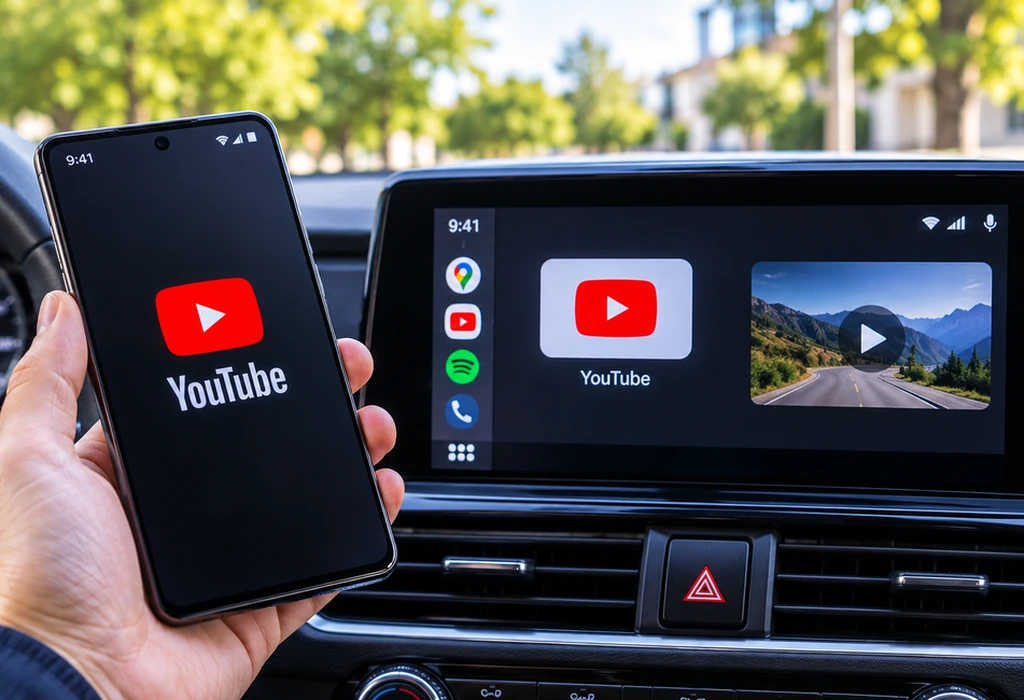
When YouTube showed up on Android Auto in March 2026, the headlines made it sound like the wait was finally over. Then drivers tried it. There’s no video, no search, and no full app on the car screen, just a set of media controls that play the audio of whatever you started on your phone.
That’s still useful if you commute with podcasts, follow long video essays, or sit in a parking lot waiting for someone. This guide explains how YouTube on Android Auto really works, the Android Auto YouTube limitations you’ll run into, why Premium matters, and when video is coming, based on YouTube’s, Google’s, and GM’s own announcements. If you’re new to the platform, start with what Android Auto is and whether you need it.
Quick answer
The biggest Android Auto YouTube limitations are that it plays audio only and needs YouTube Premium or Premium Lite. There’s no video, browsing, or search on the car screen. To watch YouTube on Android Auto today, you really just listen. Start a video on your phone, then play, pause, or skip it from the car’s media controls. Parked video for Android 17 phones hasn’t arrived as of October 2026.
Can You Use YouTube on Android Auto?
Yes, but not the way most people picture it. Since late March 2026, YouTube Android Auto support works through the media controls, not through its own app. As 9to5Google put it when the change appeared, “This is not a YouTube app on Android Auto.”
Once a video is playing on your phone, it shows up in the media widget on the Android Auto dashboard, next to your map. You get the video’s title, a play and pause button, and a button that jumps to the next video in your queue. The steering wheel controls work the same way, and the audio plays through your car speakers.
What you won’t find is a YouTube for Android Auto app to open from the launcher. There’s nothing to browse or tap through on the dashboard, so using YouTube in Android Auto always starts on your phone.
What Are the Android Auto YouTube Limitations?
The Android Auto YouTube limitations come down to one rule. Your phone does the choosing, and the car only plays the sound. This table shows what works and what doesn’t.
| Feature | Works on Android Auto? | What it means for you |
|---|---|---|
| Audio playback | Yes | You hear the video through your car speakers |
| Video | No | The car screen does not show the video picture |
| Browse or search on the car screen | No | You pick videos on your phone before you drive |
| Play and pause | Yes | Available in the media widget |
| Skip to the next video | Yes | Jumps to the next video in your queue |
| Skip forward within a video | No | You cannot jump past an intro or a slow section |
| Steering wheel buttons | Yes | Play, pause, and next work from the wheel |
| Works without Premium | No | You need YouTube Premium or Premium Lite |
The biggest catch is that last row, and the background play section below explains why.
Is YouTube on Android Auto Worth It?
It’s worth it if you already pay for YouTube Premium or Premium Lite and like listening to podcasts, interviews, or long video essays on the road.
It isn’t worth subscribing just for this, since you can’t watch anything. And if you mainly want music, YouTube Music gives you a far better car experience.
How to Get YouTube on Android Auto?
Getting YouTube on Android Auto takes only a few minutes, because there’s nothing to install on the car side. Follow these steps in order.
- Get YouTube Premium or Premium Lite. Background play is what lets the audio keep going, and both plans include it.
- Update the YouTube app and Android Auto from the Google Play Store, so your phone has the version with car controls.
- Connect your phone to the car by cable or wirelessly, and wait for Android Auto to open.
- Start a video in the YouTube app before you pull away. Pick a playlist or let autoplay run, so the next video is ready.
- Control playback from the media widget or your steering wheel buttons.
That’s all it takes to add YouTube to Android Auto. If you’re wondering how to play YouTube on Android Auto without touching your phone, the trick is step 4. Queue up a playlist while you’re parked, then leave the phone alone.
Why Can’t I See YouTube on Android Auto?
When YouTube is not showing on Android Auto, check these three things first.
- You don’t have a paid YouTube plan, so playback stops when the screen locks.
- The YouTube app or Android Auto is out of date.
- Nothing is playing yet, or another app like Spotify took over the media widget.
If it still won’t appear, our guide to fixing Android Auto not working covers the deeper fixes.
How Do You Play YouTube in the Background on Android Auto?
YouTube background play on Android Auto needs a paid plan. Background play is the feature that keeps a video’s audio running after you leave the app or lock your phone, and Android Auto depends on it. Without it, playback stops the moment your screen turns off, and the car has nothing left to control.
You don’t need full YouTube Premium anymore. On February 24, 2026, YouTube announced on its official blog that Premium Lite now includes background play and downloads for most videos. Premium Lite costs about $7.99 a month in the US, so it’s the cheapest way to get YouTube working in the car.
There’s one catch. Premium Lite doesn’t cover music content, so for music videos you’ll want full YouTube Premium or YouTube Music Premium instead.
The downloads are a bonus for road trips. Save a few long videos at home on Wi-Fi, and they’ll play in the car without using your mobile data.
Can You Watch Videos on Android Auto?
Not yet. You can’t watch videos on Android Auto today, whether it’s YouTube, Netflix, or any other app. For video apps, Android Auto only shows audio controls on the car screen, no matter which car or phone you use.
That’s set to change. In May 2026, Google announced on the Android Developers Blog that video on Android Auto is coming to phones running Android 17 or newer, paired with compatible cars. YouTube is the first app in line, and Google says video will play in HD at up to 60 frames per second. It only works while you’re parked. Once the car shifts out of park, the video stops.
As of late October 2026, this Android Auto video feature still hasn’t reached cars. Once it does, watching YouTube on Android Auto while parked should be simple. Update your phone to Android 17, update Android Auto and YouTube, park the car, and open YouTube on the dashboard.
Here’s what each Android version can do with YouTube on Android Auto right now.
| Android version | Audio controls | Parked video |
|---|---|---|
| Android 14 | Yes | No |
| Android 15 | Yes | No |
| Android 16 | Yes | No |
| Android 17 and newer | Yes | Yes, once it rolls out |
So if your phone runs Android 14, 15, or 16, no official app will let you watch videos on Android Auto. Netflix hasn’t been announced for parked video either, as our Netflix on Android Auto guide explains.
Can You Watch Videos on Android Auto While Driving?
No. Android Auto never plays video while the car is moving, and Google’s Android 17 plan keeps that rule. Cars with Google built-in work differently, because Android Automotive runs on the car itself instead of your phone. GM allows parked-only video apps on the driver screen in select 2024 and newer models.
In select 2025 and newer models, such as the Chevrolet Tahoe and Suburban, Cadillac Escalade, and GMC Yukon, GM also allows YouTube on the passenger screen while driving. Separately, YouTube on Google built-in is rolling out in October 2026 for Premium members, with video while parked and audio while driving.
Can You Mirror Your Screen to Watch YouTube?
Not with any official tool. Android Auto has no screen mirroring option, and the Play Store doesn’t offer any mirroring apps for it. Some drivers work around this with unofficial apps like CarStream and Fermata Auto, which they install through AAAD (Android Auto Apps Downloader). That’s usually what people mean when they search for AAAD Android Auto YouTube.
Google hasn’t approved these apps, so an Android Auto update can break them without warning, and you install them at your own risk. Our Netflix article covers how these mirroring apps work in more detail.
If you try one of these apps, use it only while parked. Watching video while driving is dangerous, and many states ban screens that show video to the driver while the car is moving.
How to Use YouTube Music on Android Auto?
YouTube Music is the official way to get YouTube’s music catalog into your car. Google added YouTube Music to Android Auto in 2019, and unlike the regular YouTube app, it gets the full car experience. You can browse your library, open playlists and mixes, play downloaded songs, and ask Google Assistant or Gemini to play an artist without touching the screen.
To add YouTube Music to Android Auto, follow these three steps.
- Install YouTube Music from the Play Store.
- Open it on your phone and sign in with the Google account you use for YouTube.
- Connect your phone to the car. YouTube Music shows up in the Android Auto app launcher on its own.
If YouTube Music on Android Auto isn’t showing, update both apps. Then open Android Auto settings on your phone, tap Customize launcher, and make sure YouTube Music is checked.
So which app should you use in the car? For songs and playlists, pick YouTube Music, since it’s the only one of the two you can browse from the dashboard. Use YouTube for podcasts, talk shows, and long videos you only want to hear.
FAQ’s
How do you watch YouTube on Android Auto for free?
There’s no free way to use YouTube on Android Auto, because audio stops as soon as your phone screen locks. YouTube Music works with a free account, but you can only play songs you’ve uploaded to your own library. For full playback in the car, you need Premium Lite, YouTube Premium, or YouTube Music Premium.
Does YouTube work on wireless Android Auto?
Yes. YouTube on wireless Android Auto shows the same audio controls as a USB connection. Your car and phone both need to support wireless Android Auto.
Does YouTube work on Apple CarPlay?
Only YouTube Music has an official CarPlay app. Apple’s iOS 27 adds parked video in supported new cars, but YouTube hasn’t announced support for it yet.
Is it legal to watch YouTube in a parked car?
In most places, yes. Laws target screens the driver can see while the car is moving. For the full picture on screen laws, see our Netflix guide.
Sources
- YouTube Official Blog, Premium Lite adds background play and downloads (Feb 24, 2026)
- 9to5Google, YouTube controls on Android Auto (Mar 29, 2026)
- Android Developers Blog, Android for Cars (May 2026)
- GM Newsroom, 200+ new apps and more passenger entertainment (June 24, 2026)
- Google Blog, A new app experience for cars with Google built-in
Last updated: October 2026