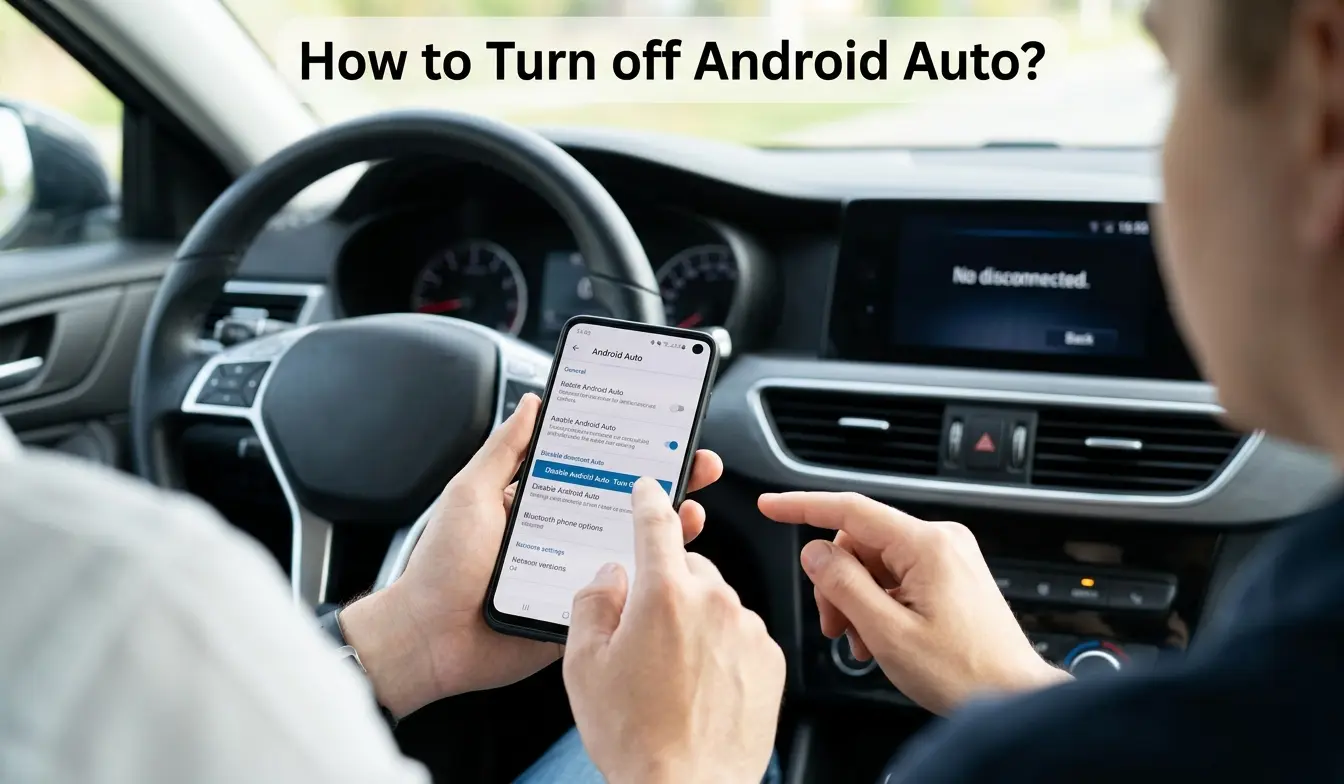
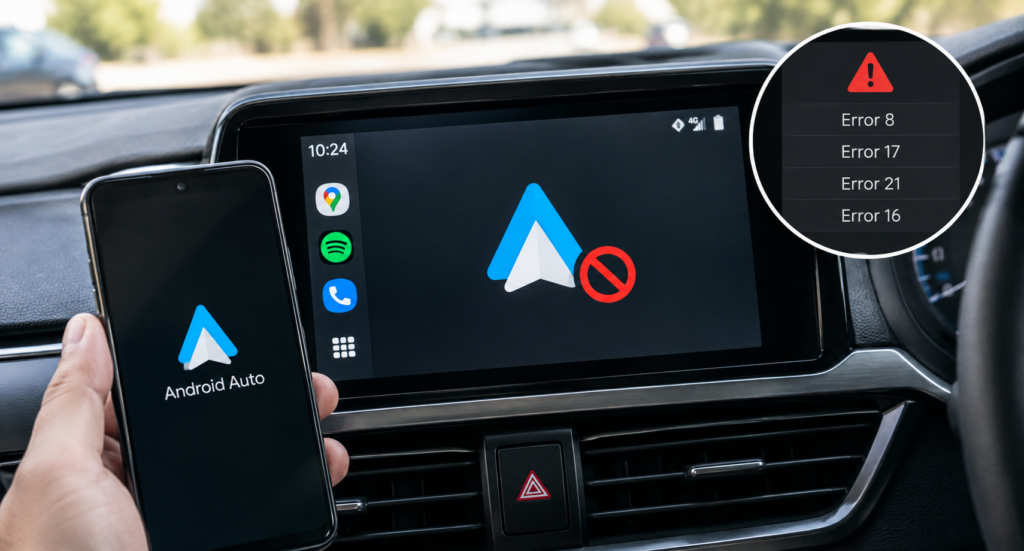
When Android Auto is not working, the problem almost always comes down to one of three things: your USB cable, a setting on your phone, or a setting in your car. Maybe your phone charges but the car screen stays blank, Android Auto gets stuck on “Connecting…”, or wireless mode never starts.
Software can cause Android Auto problems too. Google now requires Android 11 or later and an active data plan for Android Auto, so an older phone can stop connecting without warning. Instead of trying every fix on the internet, this guide helps you find why Android Auto is not connecting first, then fix only what’s actually broken.
Quick answer
To fix Android Auto, use a data cable under 1 meter (3 feet), restart your phone and car screen, and check Android Auto is on in your car’s settings. Then update Android Auto and Google Play services. If it fails, open Previously connected cars in Android Auto settings and remove your car from Rejected cars, or choose Forget all cars from its menu.
Why Is Android Auto Not Connecting?
Good Android Auto troubleshooting starts with what you see, because each symptom points to a different cause. Match your Android Auto issues to a row below.
| What you see | Likely cause | Fix |
|---|---|---|
| Phone charges, but Android Auto won’t open | Charge-only cable or “Charging only” mode | USB |
| Android Auto can’t connect to the car screen | Car on “Rejected cars,” or Android Auto off in the car | Phone, Car |
| Wireless never starts | Bluetooth or Wi-Fi off, or no 5GHz support | Wireless |
| Android Auto stops working mid-drive | Battery limits or a loose cable | Phone |
| An error message appears | Depends on the message | Errors |
| It broke after an update or new phone | App bug or copied settings | Update |
Is It Your Phone, Cable, or Car?
Why won’t your phone connect to your car? Swap one thing at a time to find out:
- Swap the cable for a short data cable, ideally your phone’s original. If Android Auto starts, the cable was the problem.
- Try the USB port with a smartphone or data icon. If it works, the first port only charges.
- Make a call through the car speakers. If calls work but Android Auto doesn’t, your hardware is fine.
- Swap the phone, then the car. If your phone won’t connect to Android Auto but another phone does, fix your phone. If yours works in a friend’s car, Android Auto is not working in your car specifically.
For example: a new cable changes nothing, but your partner’s phone connects instantly. Skip the car fixes and go straight to your phone settings.
If no phone works in your car, the infotainment system (the car’s built-in screen and software) likely needs an update or a USB port repair from your dealer.
Do Your Phone and Car Meet the Requirements?
Many Android Auto connection issues aren’t settings problems at all. The phone or car simply doesn’t meet Google’s requirements, and no reset can change that.
| Requirement | Wired (USB) | Wireless |
|---|---|---|
| Android version | Android 11 or later | Android 11 or later |
| Data | Active data plan | Active data plan |
| Car or stereo | Supports Android Auto | Supports wireless Android Auto |
| Connection | Data cable under 1 meter | Bluetooth plus 5GHz Wi-Fi |
Two things catch people out. First, wired support doesn’t mean wireless support: many cars only run Android Auto over USB, so check your owner’s manual before blaming your phone. Second, Android Auto no longer works on the phone screen by itself. Google retired that version in 2022, so you now need a compatible car display or stereo.
Why Is Android Auto Not Connecting via USB?
A USB connection usually fails because of the cable or port, especially if everything worked last week.
Is Your Cable the Problem?
Usually, yes. A compatible USB cable for Android Auto is short, certified, and built for data. Here’s how to tell a good cable from a bad one, based on Google’s advice:
| Check | Works with Android Auto | Causes problems |
|---|---|---|
| Length | Under 1 meter (3 feet) | Long cables lose signal |
| Type | Your phone’s original, or USB-IF certified | Cheap charge-only cables |
| Wires inside | Power and data wires | Power wires only |
| Connection | Straight from phone to car | Hubs, splitters, or extension cables |
| Car port | Front data port with a smartphone icon | Rear-seat or charge-only ports |
That “wires inside” row explains why some cables don’t work with Android Auto. A charge-only cable powers your phone, but the car never detects it, so a cable that charges perfectly can still fail. Also clear pocket lint from your phone’s USB-C port with a wooden toothpick.
How Do You Turn Off “Charging Only” Mode?
If your phone says “Connected for charging only,” it’s treating the car like a wall charger. To switch it:
- Unlock your phone and swipe down from the top of the screen.
- Tap the USB notification.
- Under Use USB for, choose File transfer/Android Auto. Some phones call it MTP (Media Transfer Protocol, the mode for moving files).
If it keeps switching back, make it the default. Open Settings, then About phone, and tap Build number seven times (on vivo, tap Software version). Then open Developer options, tap Default USB configuration, and choose File transfer.
Note that this is your phone’s Developer options, not Android Auto developer mode, which controls video and wireless settings, not USB.
Why Won’t Android Auto Connect Wirelessly?
Wireless Android Auto relies on two links, and if it’s not connecting wirelessly, one of them has failed. Bluetooth starts the connection, then a direct 5GHz Wi-Fi link between your phone and car carries the maps and music, so a working Bluetooth connection alone isn’t enough.
Start by checking that your phone supports 5GHz Wi-Fi. If it only supports 2.4GHz, wireless Android Auto won’t work at all, whatever you change. On a Samsung Galaxy, open Settings, then Connections, Mobile Hotspot and Tethering, Mobile Hotspot, and Configure, and look at Band. If 5 GHz is listed, you’re fine. On other phones, look for “dual-band Wi-Fi” or “Wi-Fi 5” in the specs.
Still seeing wireless Android Auto not working? Run through this checklist:
- Keep Bluetooth and Wi-Fi on, even if you’re not connected to a Wi-Fi network.
- Turn off Airplane mode, your mobile hotspot, and any VPN app.
- Connect by cable once first. Many cars need one wired setup before wireless works.
- Check that wireless is turned on in your car’s phone projection settings.
What If Your Phone Won’t Pair Over Bluetooth?
Old pairing data is the most common reason Android Auto is not connecting via Bluetooth. It matters even with a cable, because most cars use Bluetooth for calls. Start fresh on both sides:
- On your phone, open Settings, then Connected devices, tap the gear next to your car, and tap Forget.
- On the car screen, open the Bluetooth or phone menu and delete your phone.
- Restart your phone and the car.
- Start pairing from the car screen, and check that the code matches on both screens.
If it still won’t pair, check two things:
- Is another phone connecting first? If a family member’s phone is in the car, the car may connect to it instead of yours. Turn off Bluetooth on the other phone.
- Is Nearby devices allowed? Since Android 12, Android Auto needs this permission to find Bluetooth devices. Open Settings, then Apps, then Android Auto, then Permissions, and allow Nearby devices.
Which Phone Settings Block Android Auto?
If another phone works in your car, the problem is your phone. These five settings cause most phone-side failures.
Is Auto-Start Turned On?
If Android Auto is not auto connecting but opens when you tap its icon, auto-start is off. In Android Auto settings, set Start Android Auto automatically to Always. If you changed it earlier, our guide on how to change the auto-start setting explains each option.
Is Android Auto Up to Date?
To update Android Auto, open the Google Play Store, search for Android Auto, and tap Update. Then update Google Play services and the Google app the same way, and install any waiting phone update under Settings, then System. Google rolls out Android Auto updates gradually, so the Update button may appear a few days later for you than for others.
Is Your Car on the “Rejected Cars” List?
When you first connect, Android Auto asks whether to allow the car. Tap Decline or Not now, even by accident, and the car goes on a hidden Rejected cars list. After that, Android Auto won’t connect to that car again.
To fix it:
- Open Android Auto settings and tap Previously connected cars.
- Remove your car from Rejected cars.
- Turn on Add new cars to Android Auto, then plug in again and accept every prompt.
Are Permissions or Battery Limits Blocking It?
Open Settings, then Apps, then Android Auto. This is Android Auto’s app info screen. Under Permissions, allow Location, Phone, Contacts, Microphone, and Notifications. Under Battery, choose Unrestricted, so power saving can’t close Android Auto mid-drive.
Why Aren’t Voice Commands Working?
If Android Auto voice commands are not working, the Google app is usually behind it. Google has been replacing Google Assistant with Gemini in Android Auto during 2026, and some drivers saw a “Voice commands not available” message during the switch.
Update the Google and Gemini apps, check that both have microphone permission, and try the voice button on your steering wheel instead of saying “Hey Google,” since road noise can drown out the wake word.
What If the Problem Is in Your Car?
If your car’s Android Auto is not working but your phone connects fine in other cars, the problem is the car itself. Start with the most overlooked cause.
Did Someone Tap “No” on the Car Screen?
Most cars ask “Use Android Auto?” the first time you plug in. If someone tapped No, the car remembers it and quietly ignores your phone. That’s why Android Auto is not connecting to the car even with a good cable. Think of it as the car’s own Rejected cars list. Here’s where to allow your phone again:
| Brand | Where to turn Android Auto on | Good to know |
|---|---|---|
| Subaru (STARLINK) | Settings, Phone, Android Auto, Device List, Edit. Tick your phone. | Subaru’s service bulletin confirms a “No” is the usual reason Subaru Android Auto is not working. |
| Hyundai | Setup, Device Connections, Phone Projection Settings, Android Auto | Unplug your phone first, or the setting can’t be changed. |
| Honda (incl. Odyssey) | General Settings, Smartphone Connection, Android Auto | Disconnect any iPhone first. CarPlay and Android Auto can’t run together. |
| Toyota | Settings icon, Android Auto, then switch your phone’s slider on | Set separately for each phone. |
| Ford (SYNC 3) | Settings, Android Auto Preferences, select your phone, Enable | For Android Auto on Ford SYNC 4, use Phone, then Phone List. |
| Uconnect (Chrysler, Jeep, Ram) | Delete old phones in the phone settings, then reconnect by USB | Pacifica supports Android Auto from 2018 onward. |
How Do You Restart the Infotainment System Properly?
Many cars keep the screen running for minutes after you switch off, so a quick restart often changes nothing. Turn off the car, open and close the driver’s door, and wait until the screen goes dark. Chevrolet says to wait until the OnStar light goes out, which can take up to 15 minutes.
If every phone fails in your car, ask your dealer about an infotainment software update. Aftermarket stereos from Pioneer, Kenwood, or Sony get firmware updates from the maker’s website.
How Do You Reset Android Auto?
If you’re wondering how to reset Android Auto, there’s no single reset button. Instead, reset Android Auto in three levels and stop as soon as it works, because each level erases more of your setup.
| Level | How | What you lose |
|---|---|---|
| Soft reset | App info screen, Force stop, then restart your phone | Nothing |
| App reset | Same screen, Storage, Clear storage | Android Auto settings and saved cars |
| Full reset | Forget all cars in Android Auto, then re-pair Bluetooth and remove your phone from the car | All pairings, so you set up again by cable |
None of these touch your Google account, contacts, or music.
How Do You Clear Android Auto’s Cache?
Try this before the app reset. Here’s how to clear the Android Auto cache: on the app info screen, tap Storage, then Clear cache. It’s safe because it only removes temporary files, so your settings and cars stay put. Can’t find Android Auto in your apps list? Tap the menu, choose Show system apps, and search again.
What Do Android Auto Error Messages Mean?
An error message is actually helpful, because its wording tells you where the problem is.
| Message | What it means | What to do |
|---|---|---|
| “Android Auto must be preinstalled on this device” (error 22) | Android Auto isn’t built into your phone. This mostly happens on custom software like /e/OS. | On a regular phone, re-enable and update Android Auto. |
| “MTP not supported” (often Nissan) | The car read your phone as a music device instead of starting Android Auto. | Switch USB mode to File transfer, and check Android Auto is on in the car. |
| “Cable not recognized” | Often appears after an Android update. | Use your original cable, clear Android Auto’s cache, and restart while plugged in. |
| Communication error with a code | The phone-to-car connection dropped. | Code 8 has its own fixes. |
Seeing a message that isn’t listed? Send it to Google from Android Auto settings: tap the menu and choose Send feedback.
Did It Break After an Update or on a New Phone?
After an update: When Android Auto is not working after an update, the update is usually the cause, and the fix is often temporary. Start with a restart and a cache clear. If Android Auto stopped working right after the app itself updated, roll it back: on the app info screen, tap the menu and choose Uninstall updates.
Then report the problem from Android Auto settings with Send feedback. Google does fix these bugs. In July 2025, it patched one that left some drivers with no audio after an update.
On a new phone: If Android Auto is not working on a new phone, transfer tools like Samsung Smart Switch or vivo EasyShare may have copied old settings. Clear Android Auto’s storage, remove your old phone from the car, and connect by cable first.
Do Samsung, Xiaomi, and vivo Need Extra Settings?
Yes. If Android Auto is not working on Samsung, Xiaomi, or vivo, the brand’s battery saver may be closing it between drives.
- Samsung: open Settings, then Battery, then Background usage limits. Remove Android Auto from Sleeping and Deep sleeping apps, and add it to Never sleeping apps.
- Xiaomi, Redmi, POCO: turn on Autostart for Android Auto and set its Battery saver to No restrictions.
- vivo: allow Android Auto under Battery, then Background power consumption management, and turn on Autostart.
- Pixel and Motorola: no extra settings needed. Motorola Android Auto runs on near-standard Android, so the fixes above cover both.
FAQ’s
How do I force Android Auto to connect?
Tap the Android Auto icon on your car’s screen to start it manually. If the icon is missing or grayed out, check the auto-start setting and the Rejected cars list in the phone settings section above.
Why isn’t Android Auto showing up on my car screen?
Usually one of three settings blocks it: your phone’s Rejected cars list, USB set to charging only, or Android Auto switched off in the car. The symptom table at the top links to each fix.
Why does Android Auto show a black or blurry screen?
Restart your phone and car first. If it continues, open Android Auto’s developer settings, then Video resolution, and pick a different option.
Is Android Auto down right now?
Check the Android Auto Help Community or Downdetector. If many drivers report the same problem after an update, it’s a Google bug, so wait for the fix.
Can I use a USB-C to USB-C cable for Android Auto?
Yes, if your car has a USB-C port. Older cars with USB-A ports need a USB-A to USB-C data cable that’s under 1 meter.
Does Android Auto work without the internet?
Partly. Downloaded Google Maps areas and downloaded music still work, but live traffic, voice commands, and streaming need data.
Why does Android Auto keep disconnecting?
Usually a loose cable, a dirty port, or battery limits closing the app.